/PIC_H_LOGO_1.svg)
How to use the PIC dental for 3Shape Unite© integration
The integration between patient cases in 3Shape Unite© and PIC app/PIC cloud centralizes all case assets for the laboratory in a single location, eliminating the need to download the PIC file separately, receive the intraoral scan through a different channel, and manage duplicate patient records across platforms.
-
Create the patient case in 3Shape Unite© and scan the patient soft tissues with a TRIOS intraoral scanner
-
Link the case from PIC app or PIC cloud to the 3Shape patient
What you need to use the 3Shape Unite© integration
-
An active 3Shape account
-
An active PIC app or a PIC lab subscription
-
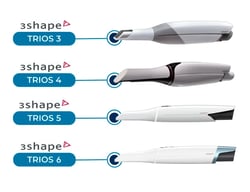
A compatible 3Shape intraoral scanner (TRIOS 3, TRIOS 4, TRIOS 5 or TRIOS 6)
- PIC transfers for the implant capture with PIC app
How to connect a PIC cloud and a 3Shape account
The integration between accounts is a one-time setup via PIC app or the PIC cloud dashboard. You won't need to link the accounts each time you want to create and download the data of a patient's case.
How to link your 3Shape account from PIC app
-
Log in to your account in PIC app.
-
Click on the icon on the upper right corner of the screen to open your Account settings.
-
Click on the "Manage Integrations" button.
-
The 3Shape integration page will appear. Click on the "Connect to 3Shape" button.
- You’ll be redirected to the 3Shape login page. Enter your 3Shape account credentials to confirm the connection.
- You'll be redirected again to PIC app after the integration between both accounts is completed.
- Alternatively, you can also link both accounts while creating a new case in PIC app:
- Under the "Case ID" field, click on the text "Link with 3Shape account".
- If there is no connection yet, a message will be displayed stating: "No 3Shape account linked. Please connect your 3Shape account in the integrations settings to use this feature."
- Click on the "Manage Integrations" button below this message.
- Then follow the same steps described from step 4 above.
How to link your 3Shape account from PIC cloud
- Log in to your account in PIC cloud (cloud.picdental.com).
- In the dashboard, scroll down to the "Integrations" section at the bottom of the page. There, you will see the option to connect to 3Shape Unite©. You can also check it through the menu PIC account > Integrations.
- Click on "Connect".
- You’ll be redirected to the 3Shape login page. Enter your 3Shape account credentials to confirm the connection.
- You'll be redirected again to your PIC cloud account after the integration between both accounts is completed.
If you don’t have any 3Shape account connected to your PIC cloud account, a red “Not connected” tag will appear in the Integrations section. Once your account is successfully connected, a green “Connected” tag will be displayed.
How to link a case from PIC app to 3Shape Unite© (before capture)
You can link your patient cases to your 3Shape cases directly when creating them in PIC app, before the capture begins:
- Select "New Case" from the PIC app home screen.
- Click on the "Link this case with 3Shape" displayed under the "Case ID" field.
- A pop-up window will open displaying the list of your 3Shape cases, including the patient’s name and the case creation date. Select the case you want to link to this new case in PIC app and click the "Confirm" button.
- A note indicating that the case has been linked with 3Shape Unite© will appear in the "Case description" field.
- You can then complete the remaining case details in PIC app or save it as a draft to finish the capture later.
How to link a case from PIC cloud to 3Shape Unite© (after capture)
You can also link the cases after an implant capture is complete by following a simple process:
-
Select the case you want to link to your 3Shape account from the "PIC cases" menu in your PIC cloud account.
-
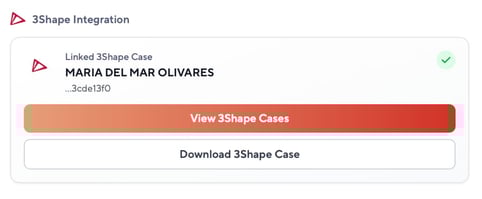
The case page in PIC cloud will open. Click on the button "View 3Shape Cases" in the 3Shape "Integration" module.
- A list with your 3Shape cases will be displayed. Select the corresponding patient case you want to link and click on the "Associate Case" button. You can find it by searching for the patient’s name or by the case creation date.
- Your 3Shape and PIC cloud cases will be linked now, and the "Download files" button will appear in your case page in PIC cloud.
You can unlink a case at any time by clicking the "View 3Shape Cases" button and then selecting "Unlink Case". If needed, you can repeat the process afterward to link a different case from your 3Shape list.
How to download and share your complete cases
You can download both the scans and implant positions directly from your PIC cloud account, where data from PIC app and 3Shape Unite© is stored together for secure, streamlined sharing with your lab.
External guest users invited to the account, as well as partner accounts with whom the case is shared, can also download the PIC file and all soft‑tissue STL files for that patient directly from the same case view in PIC cloud.
If you share a case with a PIC cloud partner, they will only be able to download the 3Shape Unite© data for the specific case you linked and shared with them. They won’t have access to any other cases in your 3Shape account. Learn more about how to assign PIC cloud licenses to other users here.
How to download the 3Shape STL files
After linking a case between PIC cloud and 3Shape, a "Download" button will be displayed in your case page in PIC cloud. Click this button and confirm the download to save the STL files to your computer.
How to download the PIC file
To get the PIC file, download it as usual from your PIC cloud account.
Your lab can continue with the prosthesis design using any dental CAD software. Learn more working with the PIC file in 3Shape or exocad here.
You can disconnect your 3Shape account at any moment by clicking on the button "Disconnect 3Shape" from the 3Shape integration module in your PIC cloud account or from your Account settings in PIC app.