
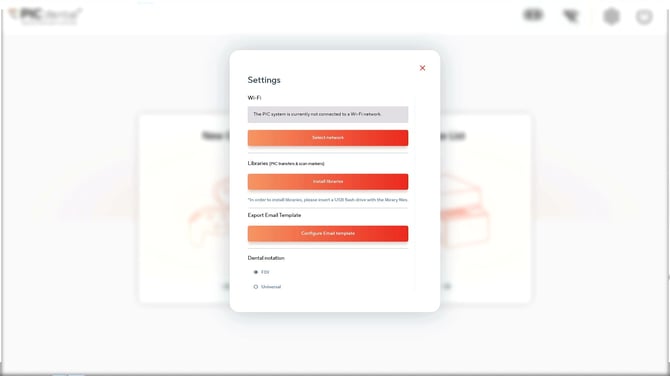
The Settings menu provides the following options:
- Wi-Fi connection
- Libraries (PIC transfers & scan markers)
- Custom export email template
- Dental notation
- Interface style for capture page
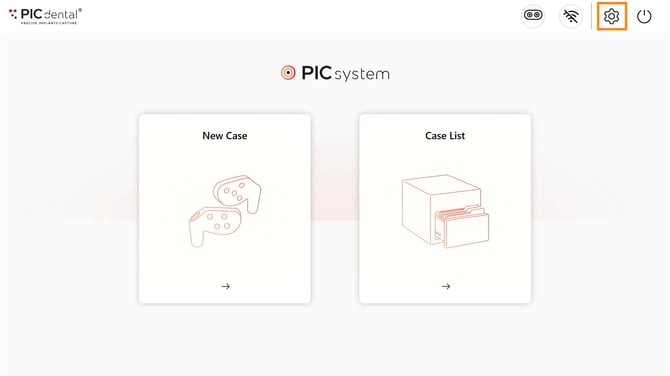
Access Settings by tapping the settings icon on the status bar.
Wi-Fi
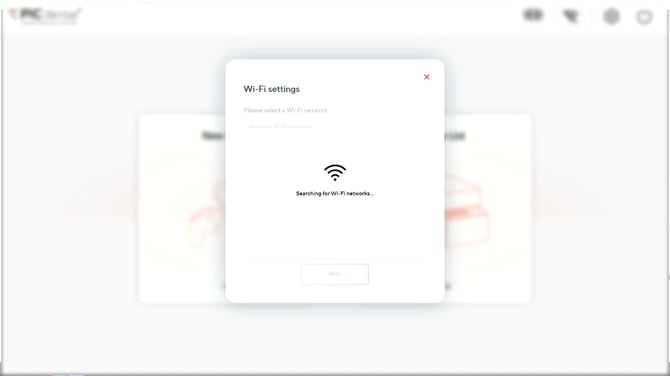
To connect to a Wi-Fi network, tap on the "Select network" button, choose your preferred network from the list and, if needed, input the password.
Libraries
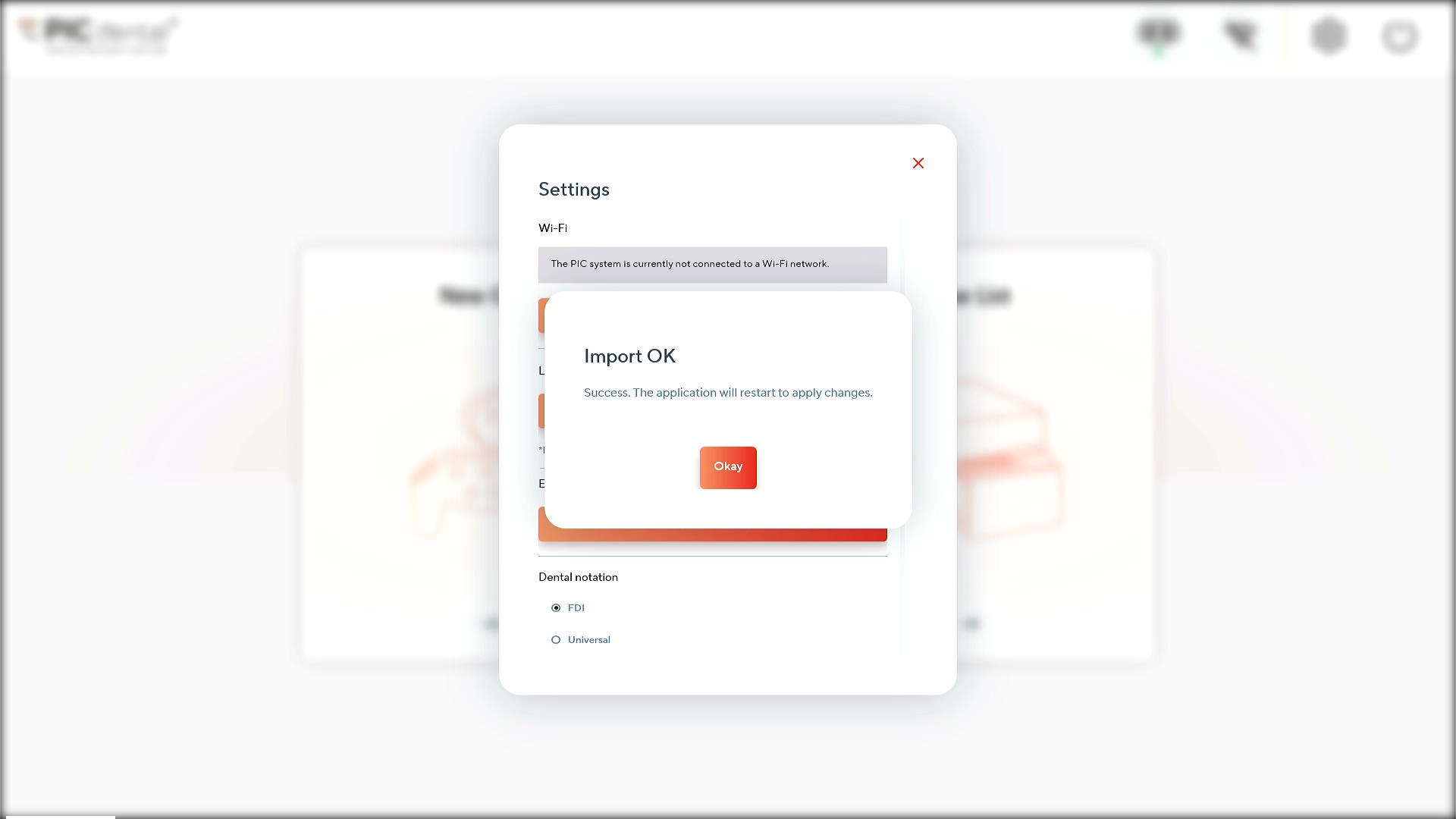
PIC transfers kits and scan marker types have to be installed on PIC suite to become available during case setup.
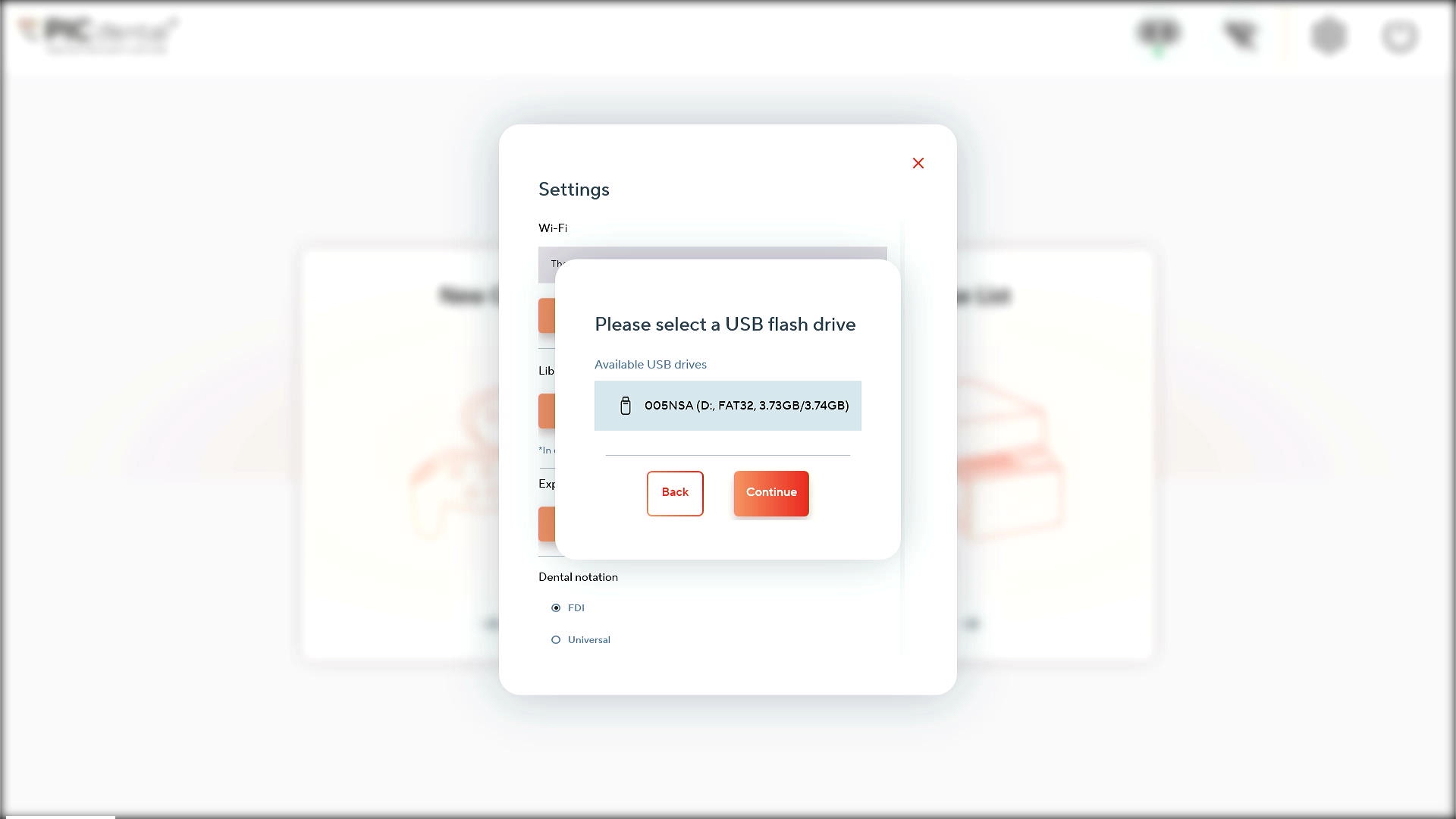
New libraries can be installed by inserting a USB drive with the library installation files provided by PIC dental and tapping on the "Install libraries" button.
Select the correct USB where the libraries are stored.
Custom export email template
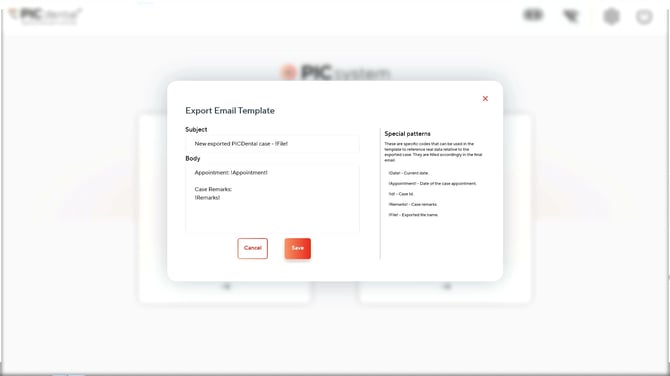
When exporting PIC files by email, this setting allows customizing the template subject and body of the outgoing emails.
Custom codes
Case information such as the appointment date and comments can be dynamically instered anywhere in the email subject and body using the following codes
- Current date: !Date!
- Case appointment date: !Appointment!
- Case ID: !Id!
- Case comments: !Remarks!
- Exported file name: !File!
Dental notation
There are two dental notations available in PIC suite:
1. FDI World Dental Federation Notation
2. Universal Numbering System
This setting only changes the notation used for tooth positions within the odontogram displayed and PIC transfers summary table in the Odontogram Editor and measurements summary table in the Case Summary.
Changing the notation in settings does not affect exported PIC files.
Interface style for capture page
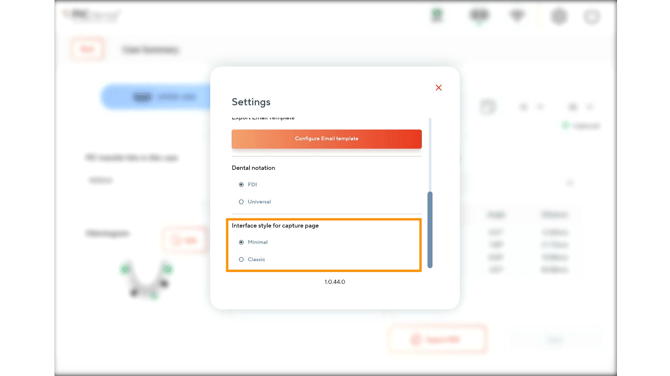
There are two capture interface styles available in PIC suite for the capture page:
1. Minimal. Minimal is a more compact interface that displays capture progress circles grouped together in a rectangle at the top of the screen. It also includes a mini-odontogram status at the bottom representing an upper or lower jaw depending on the current capture.
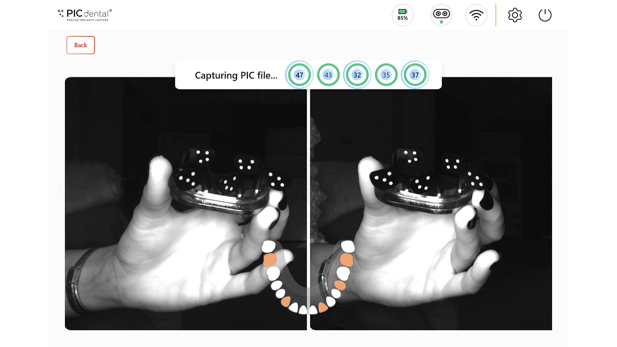
2. Classical: Capture progress circles are displayed representing the curvature of the jaw depending on the current case (upper jaw or lower jaw).
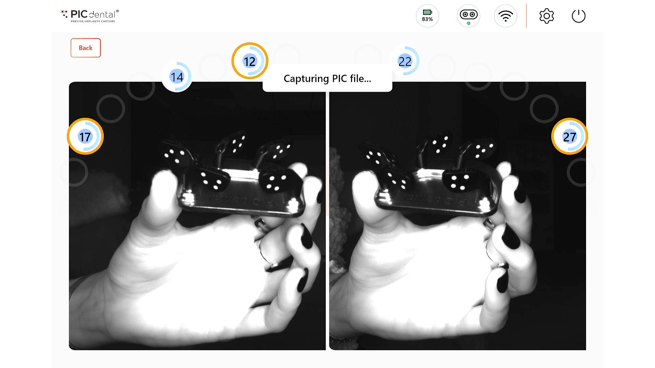
This setting only changes the interface style on the capture page, and does not affect the exported PIC files. This setting is simply to adjust which interface style that is preferred during capture.
Learn more about the appearance of both styles when capturing the PIC file.