
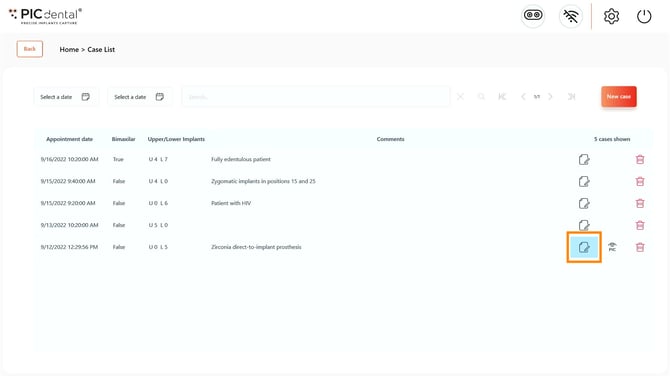
To access the Case Summary for a previously created case, tap on the Case Summary icon of any case available on the Case List page.
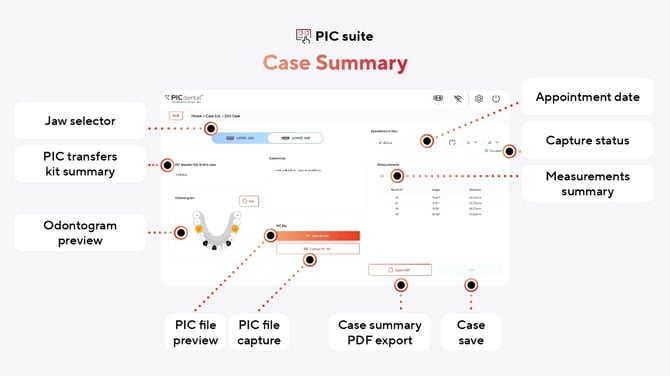
The Case Summary page provides the following options:
Case details
- Jaw selector
- PIC transfer kit summary
- Odontogram preview
- Appointment date, comments, capture status
- Case summary PDF export
PIC file
Case details
Jaw selector
Switch between visualizing the information of the lower and upper jaw (also available in the Odontogram Editor).
PIC transfers kit summary
This section lists all the PIC transfer kits used in the current jaw.
Learn more about combining multiple PIC transfer kits in a single case.
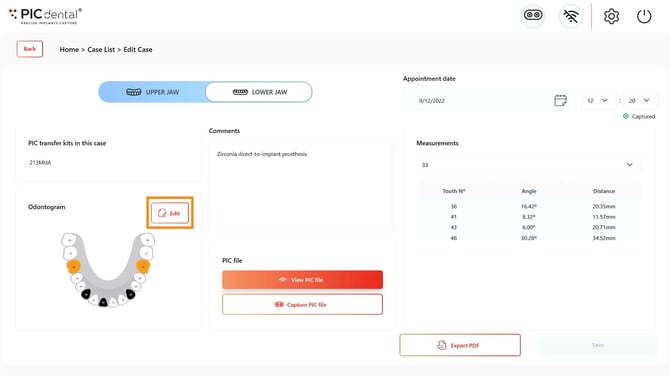
Odontogram preview
The odontogram preview only displays which tooth positions currently have assigned PIC transfers and which of them have been enabled as references.
To access the full Odontogram Editor for the case, tap the "Edit" button.
Appointment date, Comments, Capture status
These three sections have the same functionality as in the Odontogram Editor.
Measurements summary
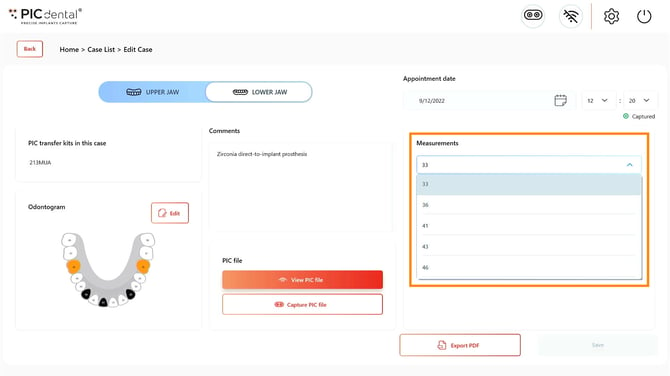
The measurements summary table shows the implant distances and angulations as measured against one of the implants. The implant used as reference for the measurements is displayed above the table and may be changed to any of the captured implants.
The measurement summary table will only display information after completing a capture.
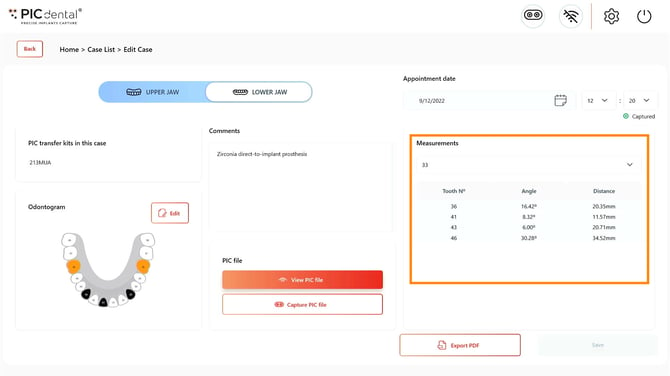
To change the implant referenced for the measurements, tap on the number above the table to display the dropdown menu and tap on a different tooth position.
Case summary PDF export
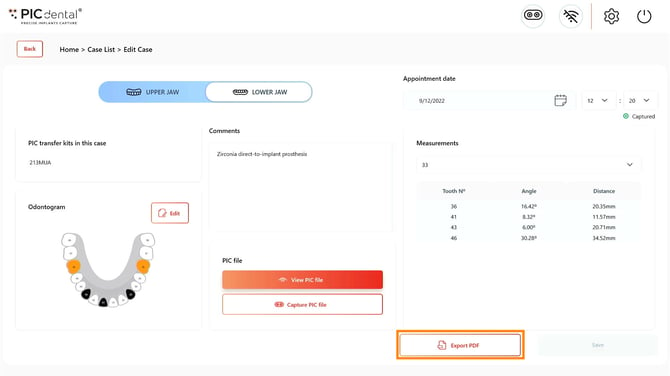
PIC suite provides an option to export the summary of the case as a PDF document. Tap on "Export PDF" to proceed.
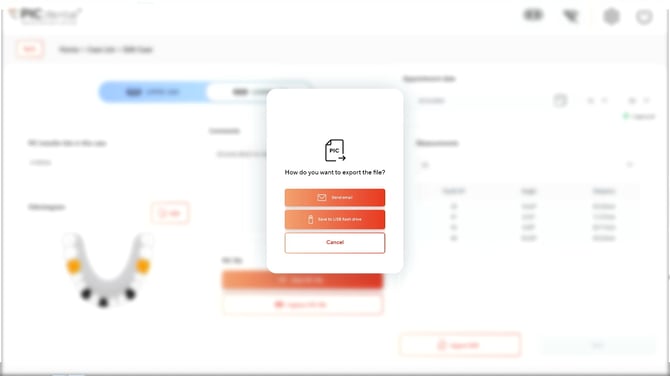
The PDF case summary may be exported via:
1. Email
To export the case summary by email, the PIC system must be connected to a Wi-Fi network.
2. USB flash drive
Insert a USB flash drive to the PIC system's USB port before saving the file.
PIC file
Learn more about previewing and exporting a PIC file.
If a capture has been completed for the currently selected jaw of the case, the resulting PIC file can be accessed by tapping on the "View PIC file" button.
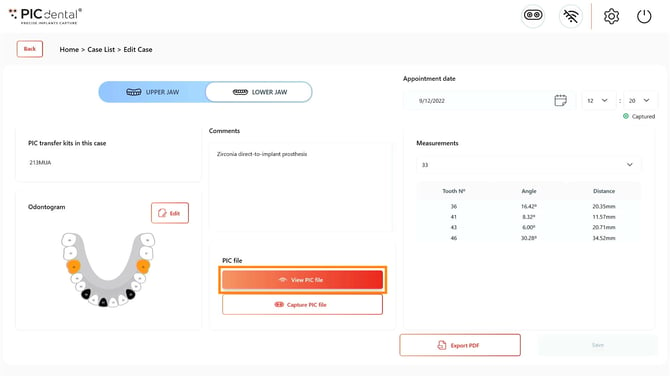
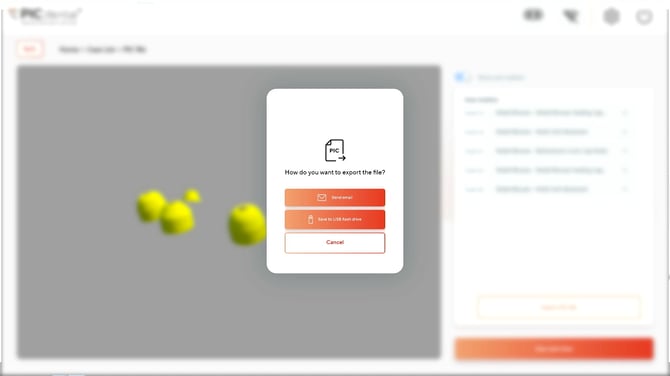
After completing a capture, the PIC file may be previewed and exported.