
The Case List displays all the cases saved in PIC suite and includes the following options:
- Create a new case
- Browse through the list of existing cases
- Search for cases
The cases are listed in chronological order based on the case's appointment date, from most recent to oldest.
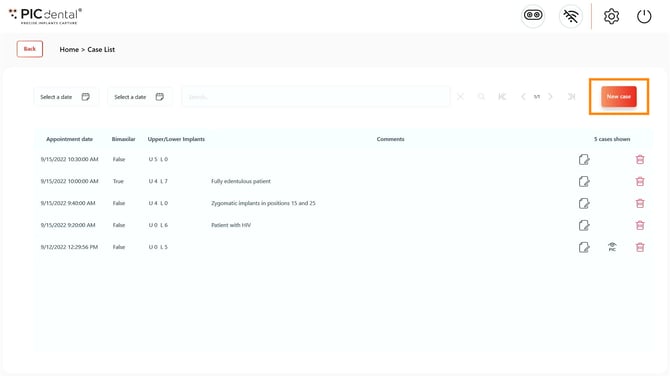
Create a new case
Tap on the "New Case" button to create a new case.
Browsing the case list
The table on this page provides a quick overview of each case:
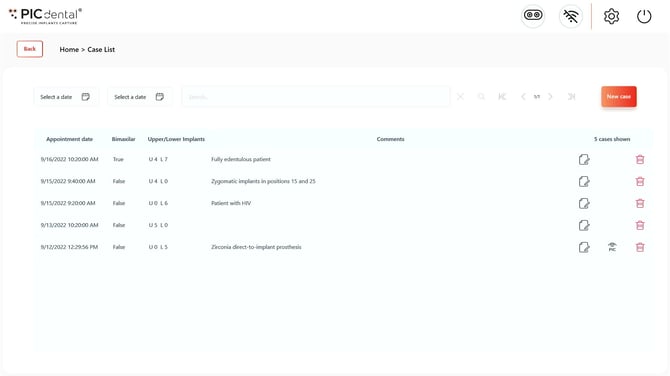
- Case information
- Appointment date & time
- Bimaxillary or single jaw case
- Number of upper and lower implants assigned in the Odontogram Editor
- Case comments
- Direct actions
- Case summary

- PIC file (only visible if case has been captured)

- Delete case

- Case summary
Deleting a case is irreversible. Please double check that you have chosen the intended case for deletion.
The only way to recover case information after deletion is by recreating the case and repeating the PIC file capture with the patient.
Search
Cases within the case list can be searched in two ways:
1. Date search
The two date fields next to the search bar are used to select the date range for the search.
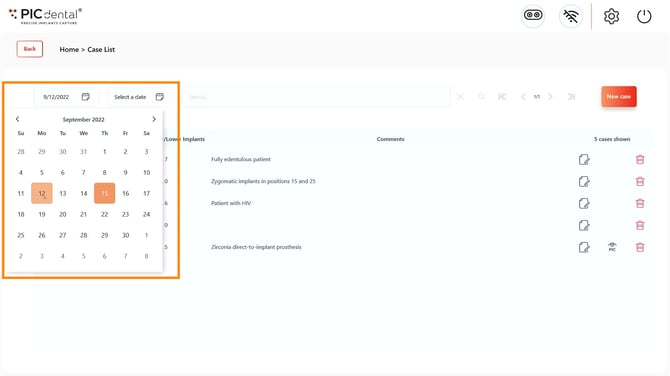
After selecting the date range, tap on the search icon to filter the case list.
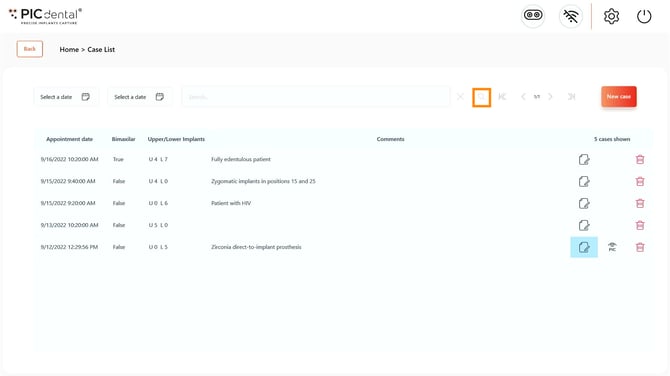
Only the cases with an appointment date within the selected date range will be displayed, sorted from newest to oldest..
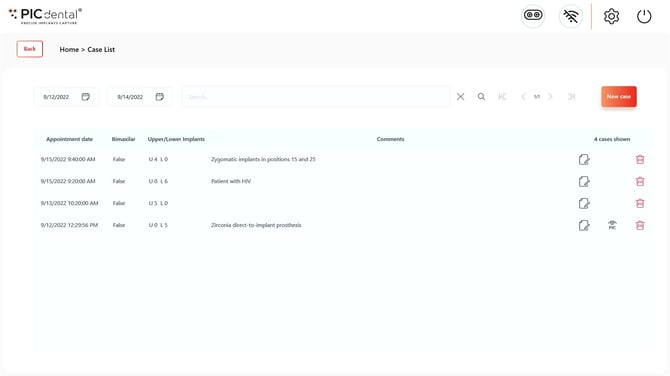
To cancel the search and display the full case list again, tap the "X" icon next to the search bar.
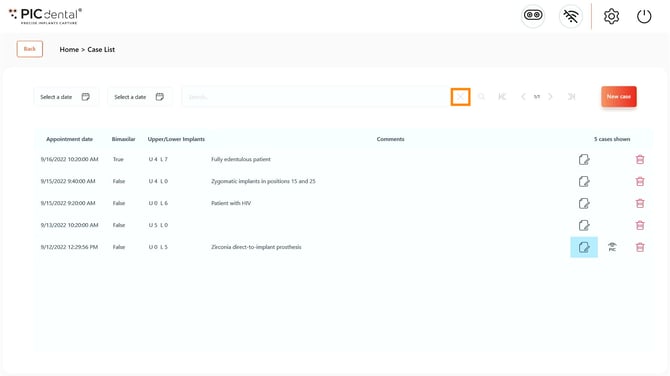
2. Comments search
Cases can be searched by any words contained in the comments field.
Tap on the search bar and an on-screen keyboard will appear to input your search query.
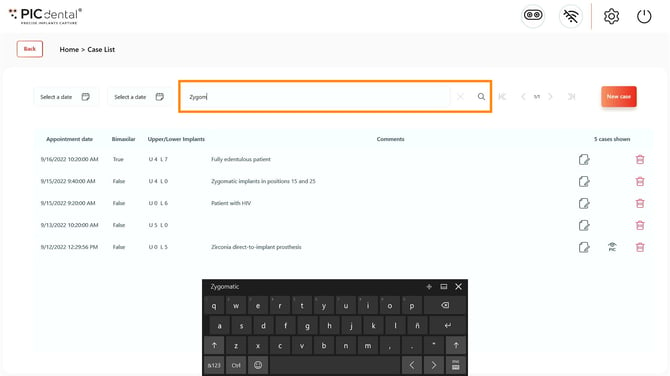
To perform the search, tap the search icon.
Only the cases with a matching word in their comments field will appear.
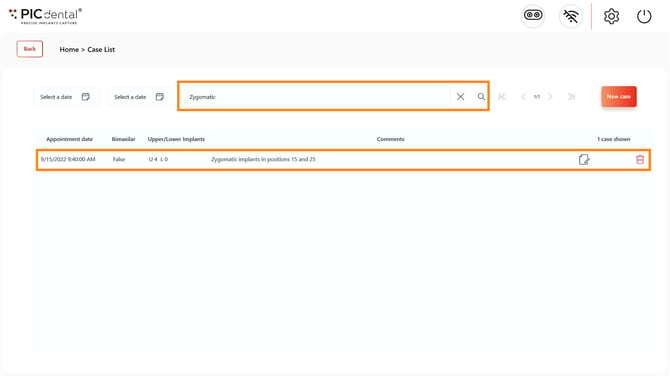
To cancel the search and display the full case list again, tap the "X" icon next to the search bar.