
Capturing a case
There are two ways to initiate a capture:
- Odontogram Editor: Tap "Start Capture" after saving the case
- Case Summary page: Tap "Start Capture"
Capture interface
The capture interface displays a live feed of both PIC camera sensors.
The camera feed will appear black and white. This is normal and is due to PIC camera's own infrared light source and camera filters.
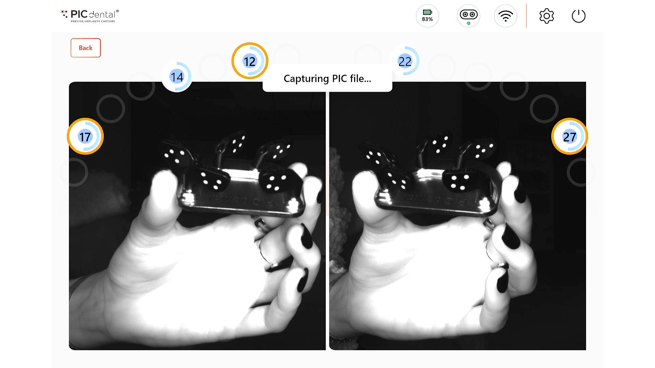
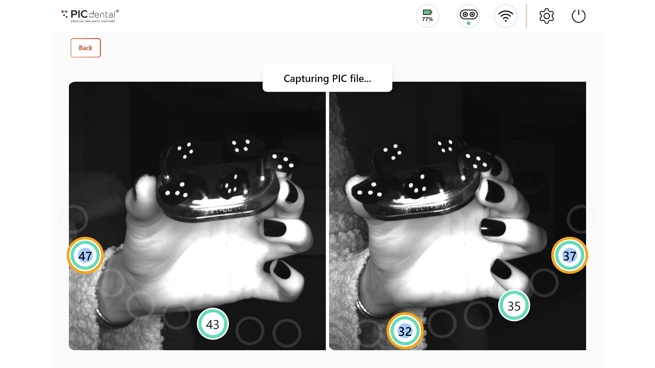
There are two different capture interfaces, Minimal and Classic. The currently active interface can be selected in Settings:
- Minimal: Minimal is a more compact interface that displays capture progress circles grouped together in a rectangle at the top of the screen. It also includes a mini-odontogram status at the bottom representing an upper or lower jaw depending on the current capture.
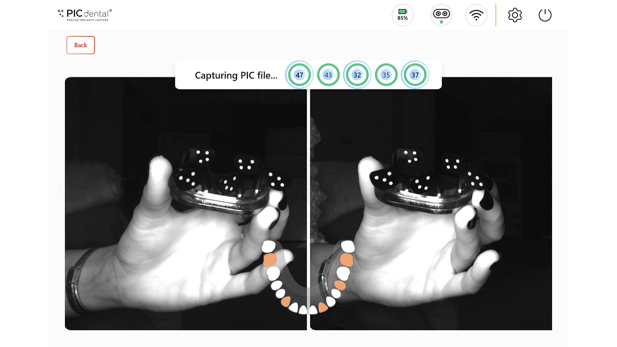
- Classical: Capture progress circles are displayed representing the curvature of the jaw depending on the current case (upper jaw or lower jaw).
Capture status/progress display
Capture status is shown through:
- Progress circles
- Odontogram status (Minimal capture interface only)
Steps of the capturing process:
- REFERENCES.
- Minimal: The tooth positions that were enabled as references will have a light blue circle around the number:

- Classical: The tooth positions that were enabled as references will have an orange circle around the number:
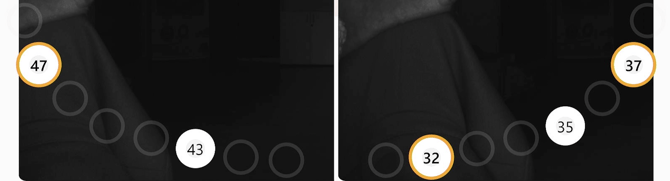
- Minimal: The tooth positions that were enabled as references will have a light blue circle around the number:
- VISIBILITY. When a PIC transfer's dot pattern is visible by both cameras of the PIC camera, a small solid blue circle will highlight the tooth position. In the following example, all PIC transfers are fully visible to the PIC camera.
- Minimal:

- Classical:
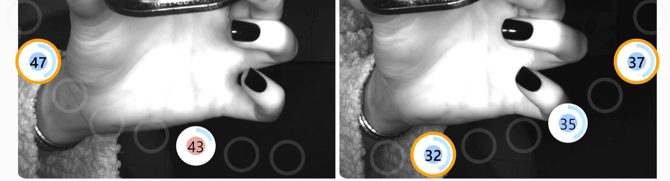
- Minimal:
- CAPTURE PROGRESS. A thin blue circle line will grow clockwise indicating the measurement is taking place.
- Minimal:

- Classical:
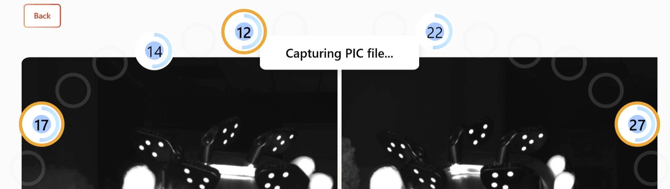
NOTE: Remember that for capture progress to continue all the PIC transfers enabled as references must be visible to the PIC camera, even if the reference's own position measurement is complete.
- Minimal:
- MEASUREMENT COMPLETE. Once the progress circle is full and appears green, the capture of information for the corresponding PIC transfer is finished.
- Minimal:

- Classical:
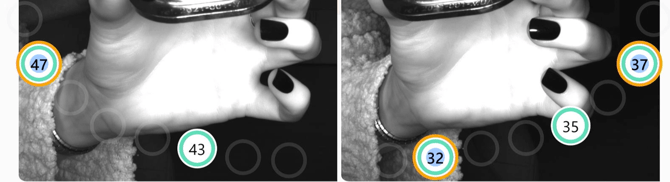
- Minimal:
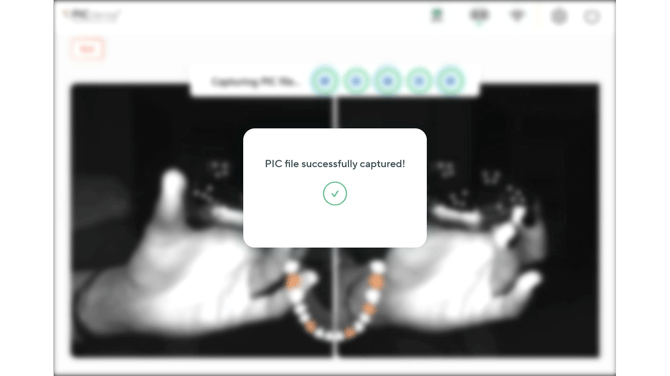
A pop-up message will appear confirming the PIC file was successfully captured.
Errors during capture
Some common issues during capture are detected by PIC suite:
- Proximity alert
- This alert appears if the PIC camera is too close/far away to the patient's mouth, and needs to be moved further away or closer to continue with the capture.
- Minimal:
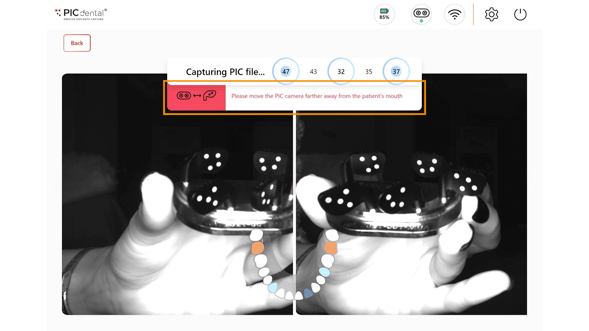
- Minimal:
- This alert appears if the PIC camera is too close/far away to the patient's mouth, and needs to be moved further away or closer to continue with the capture.
-
-
- Classical:
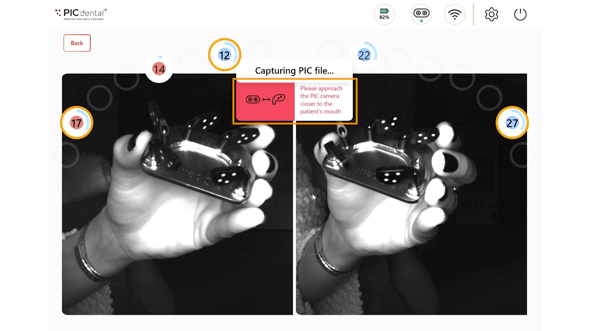
- Classical:
-
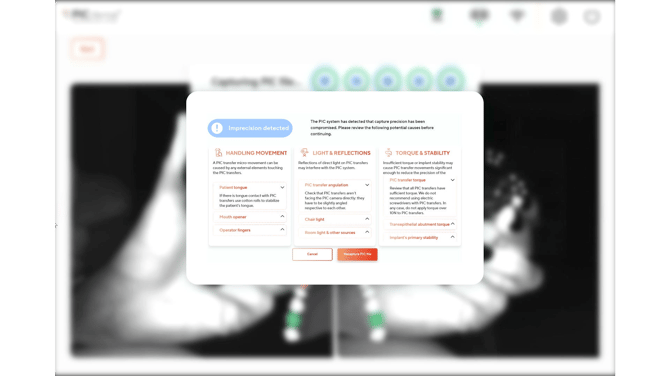
- Imprecision detection
- If capture precision has been compromised the PIC system will display an interactive guide outlining the most common causes.
- Please review these suggestions and correct any potential causes before attempting the capture again.
Case summary page 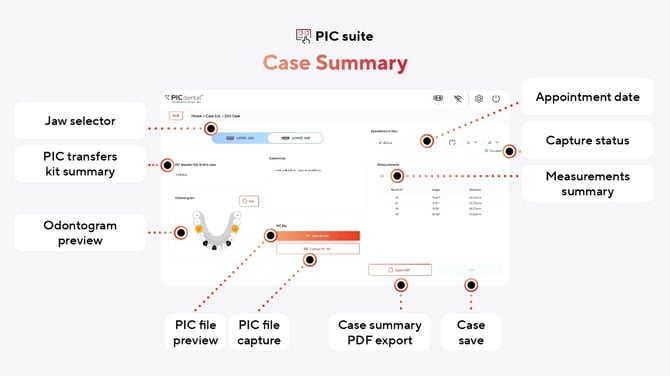
View all the case details on the case summary page.