
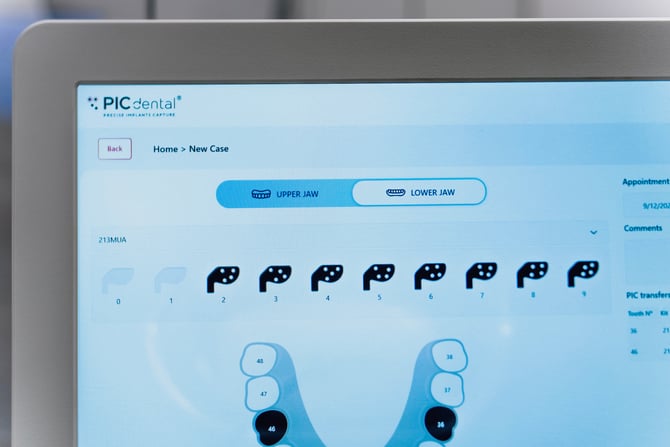
What is PIC suite?
PIC suite is the software component of the PIC system. It performs the following tasks:
- Set up clinical cases for new captures with the PIC system
- Capture of implant positions to obtain a PIC file
- Export the PIC file to the open STL format with the geometry of scan markers
- Change the scan markers after the capture and re-export the PIC file with the changed scan markers
Compatibility
PIC suite works with all PIC system and PIC camera models:
- PIC system Legacy (Released in 2010)
- PIC system (Released in 2022)
- PIC system Gravity (Released in 2022)
- Legacy PIC camera (Released in 2010)
- PIC camera (Released in 2022)
PIC suite is updated over time to introduce new and improved existing features and resolve issues.
Learn more about what's new in the latest version of PIC suite.
How does it work?
PIC suite is based on cases, which contain the PIC transfers placement and, after capture, the PIC file. In normal use, a new case is created for each new patient.
A single case may be for the upper jaw, the lower jaw, or both (bimaxillary cases).
The basic features of PIC suite are described in the following articles:
- Creating a new case
- Odontogram Editor
- Capturing the PIC file
- Case summary
- PIC file preview and export
- Browsing the Case List
Home Screen
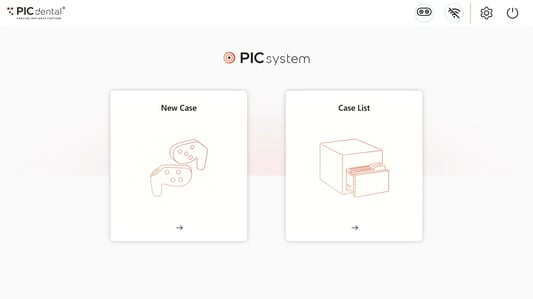
After booting, the PIC system will display PIC suite's home screen. It provides two main actions: New Case and Case List.
- New Case is used to set up a new case which may then be captured.
- Case List provides access to all previously created cases (whether they have been captured or not).
Status Bar
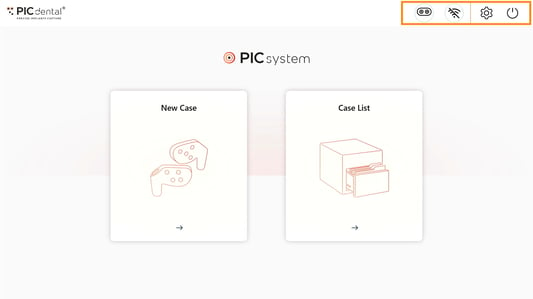
A status bar is located at the top of the screen and available throughout all of PIC suite's interface.
It provides direct access to:
- PIC camera connection status
Learn more about connecting and disconnecting the PIC camera to the PIC system- No color dot (faint circle): PIC camera not connected or not initialized

- Blinking orange dot: PIC camera initialization in progress.


- Static green dot: PIC camera connected and ready for capture

- No color dot (faint circle): PIC camera not connected or not initialized
- Wi-Fi status
- Connected
- Disconnected
- Settings button
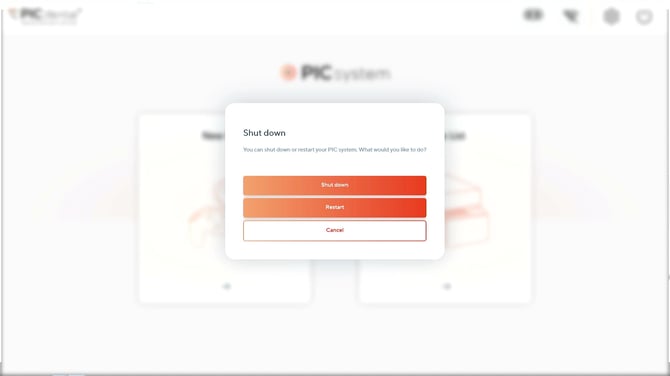
Learn more about PIC suite settings - Shutdown/Restart button
WARNING
The PIC camera is a sensitive medical device that requires a specific shutdown procedure. Failure to follow the correct shutdown procedure may cause permanent damage to the PIC system and/or the PIC camera.
See related article: Connecting and disconnecting the PIC camera