
What portable touchscreen can be used with PIC system Station?
Using PIC system Station with the included portable touchscreen optimizes space in your clinical room and gives you direct control over PIC suite without needing a keyboard, mouse, or a separate monitor.
The touchscreen model included with your PIC system Station has been verified by PIC dental to ensure it delivers the best experience.
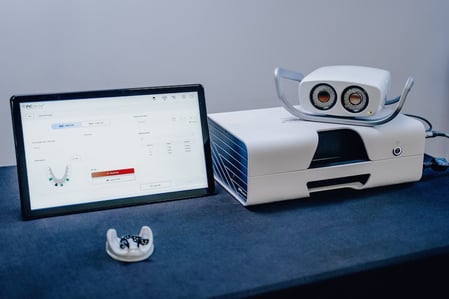
How to connect and disconnect PIC system Station to the portable touchscreen
To use PIC system Station with the portable touchscreen, you must connect the touchscreen using two cables.
To connect PIC system Station to the portable touchscreen
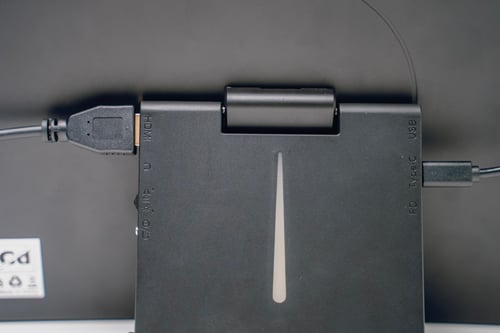
- Connect an HDMI cable using the touchscreen port labeled "HDMI" to the HDMI port on the PIC system Station
- Connect the included USB-A to USB-C cable using the touchscreen USB-C port labeled "Type-C" (not the USB or PD ports) to any of the USB-A ports on PIC system Station.
- Turn on the touchscreen and PIC system Station.
To disconnect the portable touchscreen from PIC system Station
Disconnect the HDMI and the USB cables from the portable touchscreen and PIC system Station after turning off your PIC system Station.
All cables always must be disconnected from PIC system Station and the portable touchscreen for storage. Do not attempt to place your PIC system Station and/or the portable touchscreen into its compartment in the optional wheeled case with the cable still attached. This could damage the cable and/or PIC system Station's and/or the portable touchscreen connectors.